Use the Student Login screen to enter the training system.
How you use this screen depends on whether you are registered or not. If your application is using Windows Authentication, you will not see this screen at all.
- If you are already registered, enter your user name and password, then click the Submit button. Note that you may have different labels depending on how your system is configured.
- If your site allows multiple languages, you may select your preferred language from the available list.
- If you have forgotten your user name or password and if your site is allows this option, enter your email address and click the Email User Name and Password button. Tracker.Net will then email your information to you.
- If your site allows open enrollment, then the Register As New Student button will be available. Click on it if you are not yet registered. It will take you to the New Student Login screen.
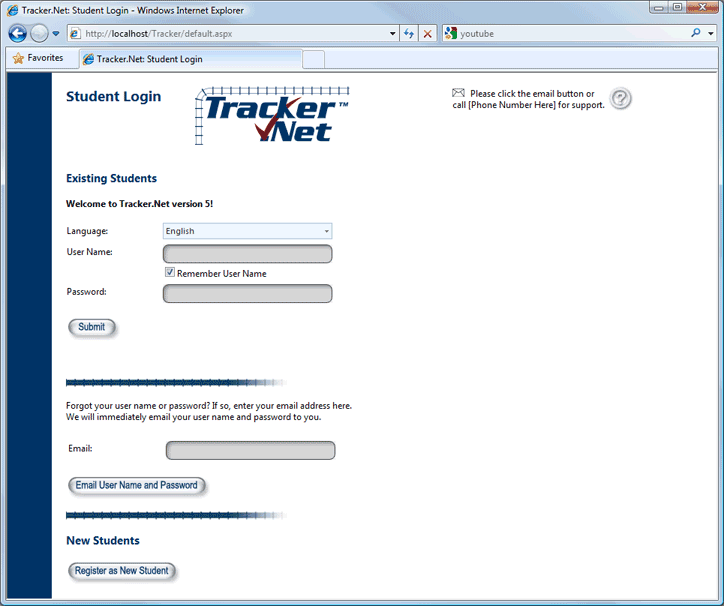
This option may or may not appear on your version of the Student Login screen. Select the checkbox corresponding to this option if you want your user name to prepopulate whenever you come back to this screen. If you are the only one using your computer, you will probably want to check this option to speed up your login process.
This option may or may not appear on your version of the Student Login screen. If it does, you may enter your email address and have your username and password emailed to you.